If it went through too quickly, I suspect it just created the virtual machine environment and did not install the OS itself. Were you prompted to locate the ISO file for Windows 10? This is needed for the OS installation inside the VMware application.
It reported it had found it already, so I didn’t need to. I did still have the ISO from the previous installation.
When you deleted the previous Virtual Machine, did you delete the files or did you select to leave them? In the latter case, it may have found your previous installation - hence left it intact (which would explain the reason you’re having the same issue).
This time, select your Windows 10 Virtual Machine and select its settings. Then, navigate to the CD/DVD, check the ISO option and then browse to the location of the Windows 10 ISO you downloaded earlier.
Once done, start the Virtual Machine and tap on a key (if it asks you) to boot from CD/DVD.
If that doesn’t help, try to create a new Virtual Machine (at a different location) and when it asks you for the Operating System, browse to the ISO of Windows 10.
Please let me know if any of the above helps.
I believe I deleted the files of the previous virtual machine, because the version of VMWare that I installed required the previous version (which was newer) be uninstalled before it would install. I just slow-walked myself through the tutorial instructions, double-checked everything as I went through it, and re-installed the Windows 10 Virtual Machine. Everything looked like it installed properly this time, and it did take longer making the disk. Given that I have 16G of RAM, I set the memory usage to 8G. I wasn’t given an option to install VMWare Tools, the Easy Install skipped that entirely. Digging through the VMWare settings options, I do see VMWare Tools listed, so I assume they automatically installed. I am still having the same problem, the same error message. I have tried searching the VMWare Help system, but haven’t found a solution as yet.
This morning, again, when I started my computer, the Nvidia version 470 drivers “lost” my 2nd monitor (which is actually my better, larger, preferred monitor), and could not find it. They also defaulted back to a much lower resolution on the other monitor and thoroughly insulted it by calling it a “laptop” (it’s a 22" monitor on a DVI connection, where the other monitor is a 24" HDMI.) I have reverted back to the xserver-xorg-video-nouveau open source driver, which works. I’m beginning to think that my system will not run Windows within VMWare.  Darn it! It was a very nice thought!
Further update: This morning after fixing my displays, I tried loading up Windows within VMWare again. I was prompted to update VMWare. It wasn’t working, so why not? Now I’m using VMWare version 16.2.1, which is the same version I initially loaded. I’m getting the same results. Phooey!
Hey @PrettyGranny,
This quite the presistent issue, which may be attributed to a bug. I looked the new release of VMware Player 16.2.2 notes and the issue they fixed was an exception fault thrown when the user tries to power on the Windows 11 VM. Perhaps this affects the Windows 10 as well.
I’ll look into terminal execution of the VMware Player when I get back to my Desktop System, as I’m currently running things on an ARM CPU (not an X86_64) so that I can check things further. When an exception is thrown, sometimes the terminal delivers a feedback of the issue. Otherwise, we might need to look into the actual logs and see what’s happening.
I’ll look forward to hearing from you.
Hey @PrettyGranny,
Let’s try to see if this works.
First, install (or check if installed) the indexing command:
sudo apt install mlocate
Once it installs (or says that it’s installed), execute:
sudo updatedb
Then type in:
locate *.vmx
The last command will locate the virtual machine you created for Windows. Select and copy the full path (including the .vmx file)
Then, execute the command:
/usr/bin/vmware -x path_to_vmx_file
Replace the “path_to_vmx_file” with the result you copied above.
If it starts, then all is good. If not, please copy/paste (or take a screenshot) of the output it gives you.
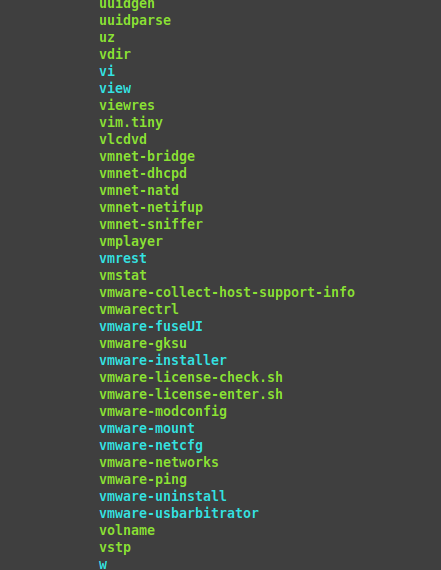
Hi, @vasileios, apparently “vmware” is not installed in /usr/bin/vmware. /usr/bin/vmware just gives the result of No such file or directory. Navigation to /usr/bin/ shows several items beginning with “vmware”, but nothing with just that name. I have attached a screenshot of that portion of the listing for /usr/bin/. Is there something on that list that looks like what I should execute instead? Perhaps vmplayer?
Hey @PrettyGranny!
This is funny. Imagine, I digged through the official docs for VMware version 16 and even they don’t have it done correctly. 
Yes, try to use vmplayer instead and see if that helps.
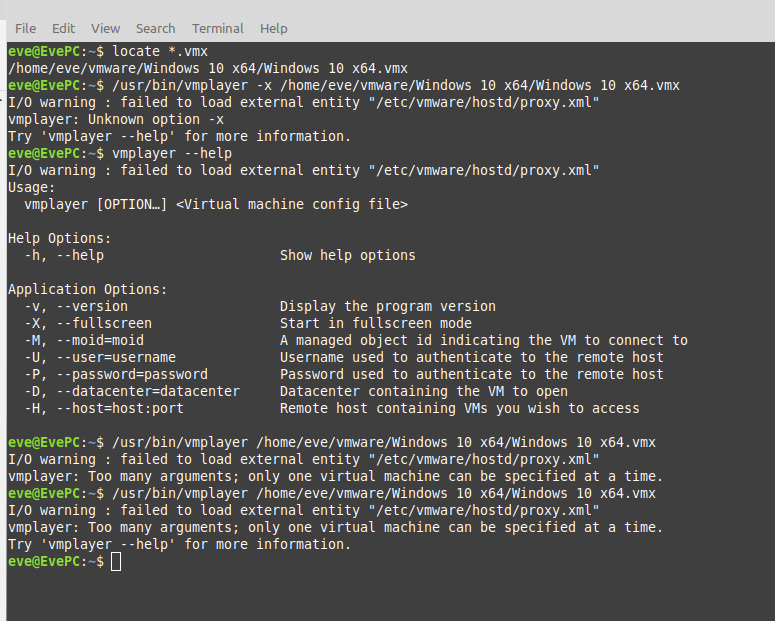
This is what I got. As you can see, I ran it twice without the -x option it apparently didn’t like, just to make sure I had done it right.
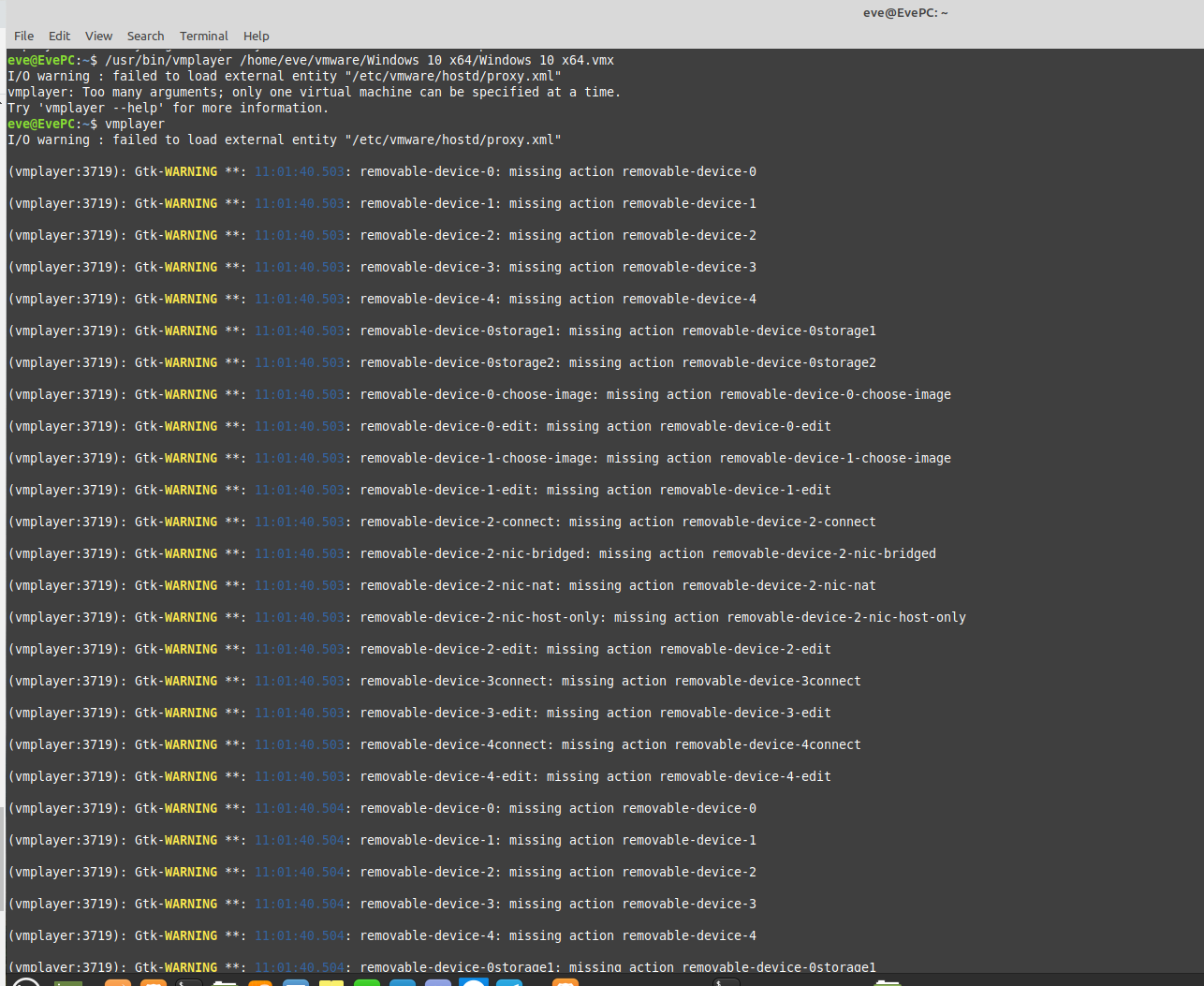
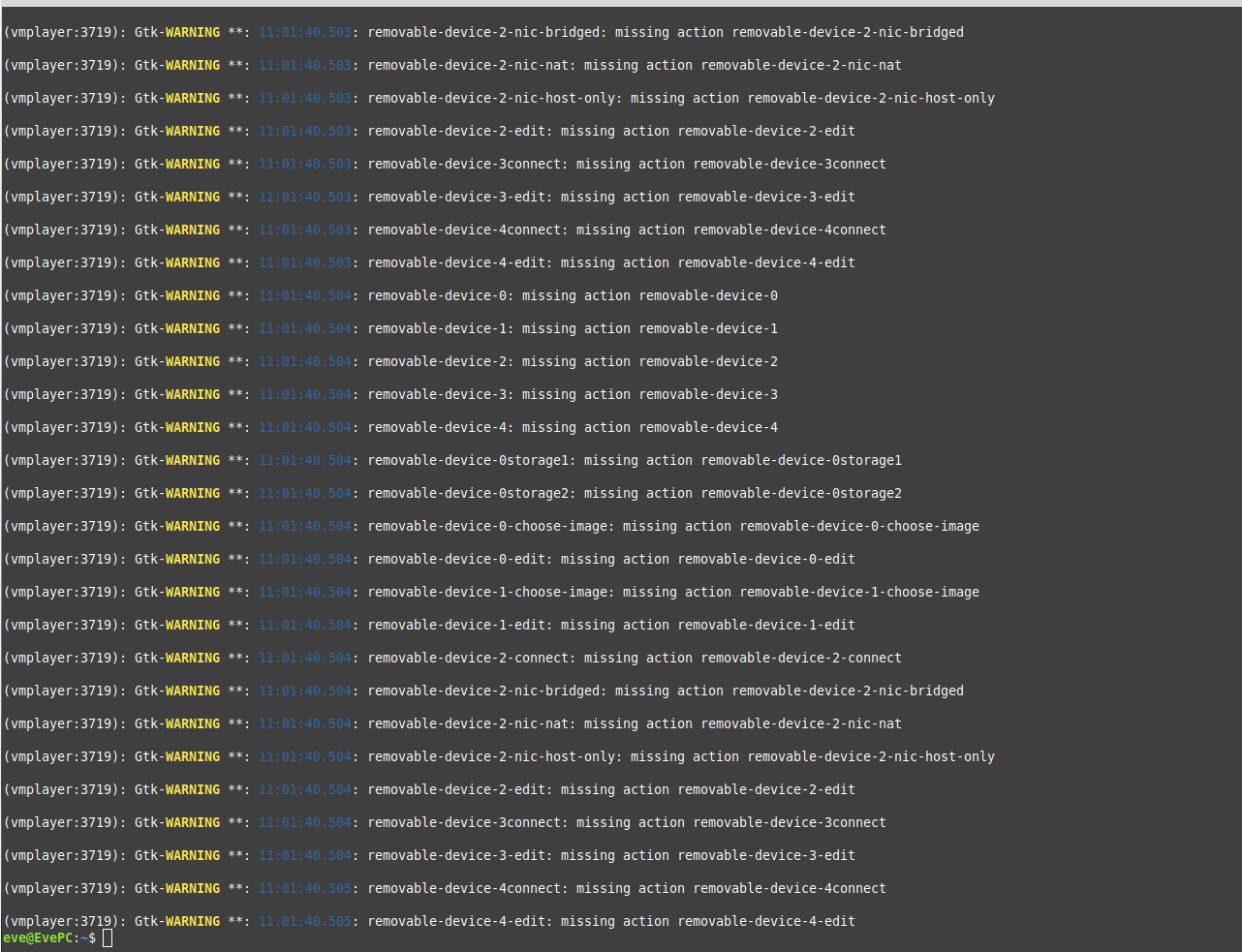
Afterwards, I ran vmplayer with no arguments in the terminal window. It loaded the GUI interface I had seen before, and when I tried to start the VM Windows, it gave me the same error, but then a long list of warnings in the terminal after it closed, more than one screen full. I am attaching screenshots. Probably a few lines are duplicated between the two, but perhaps this can help troubleshoot the issue?
Hey @PrettyGranny!
Since your VM has spaces in its name, you’ll need to enclose it in quotations like the following:
/usr/bin/vmplayer "/home/eve/vmware/Windows 10 x64/Windows 10 x64.vmx"
Give it a shot and please let me know the feedback you’re getting. 
I got 2 more pages of warnings. This time I cropped so you won’t see duplicate lines. The initial I/O warning surely means something, right? What removable devices is it looking for?
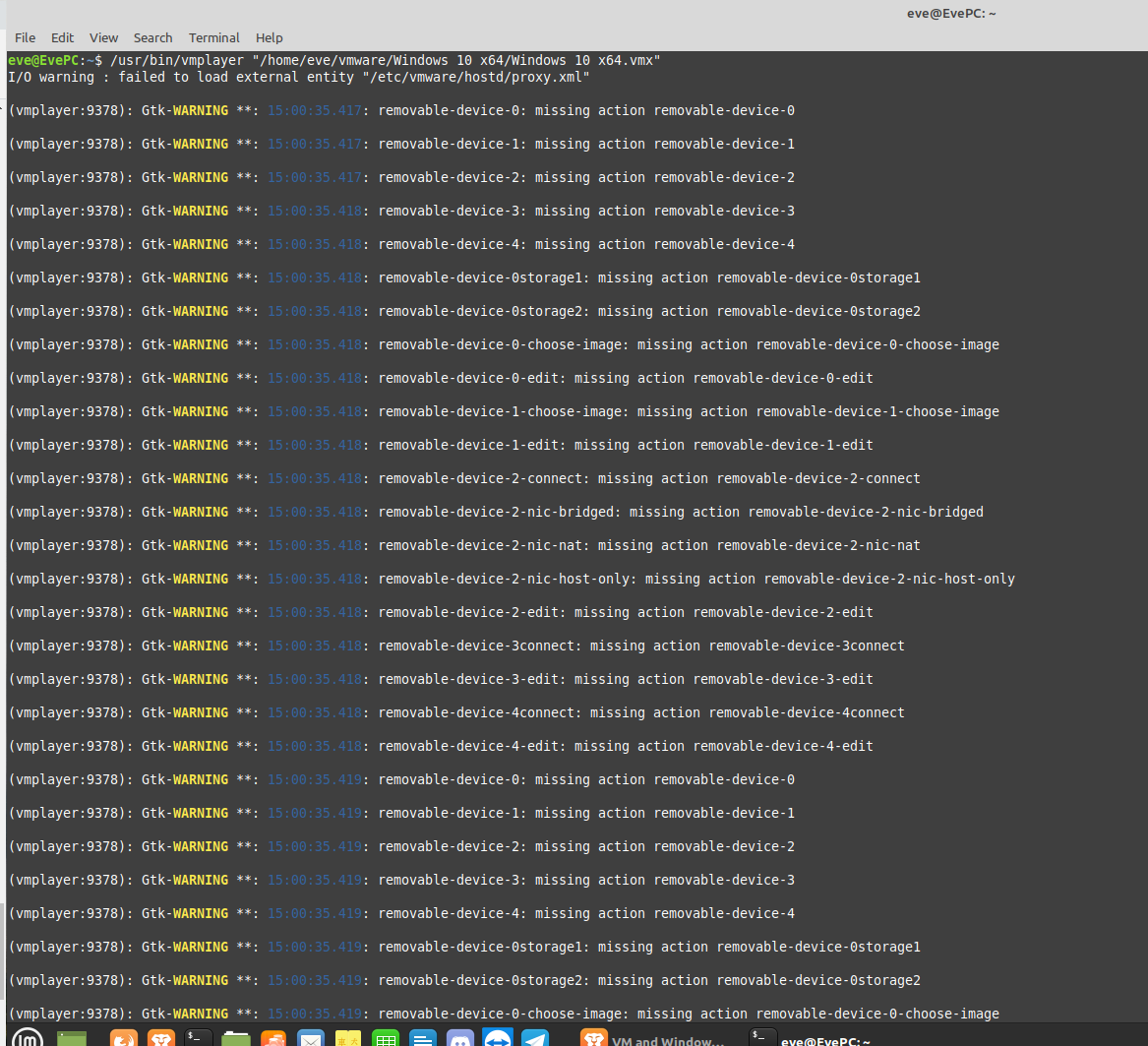
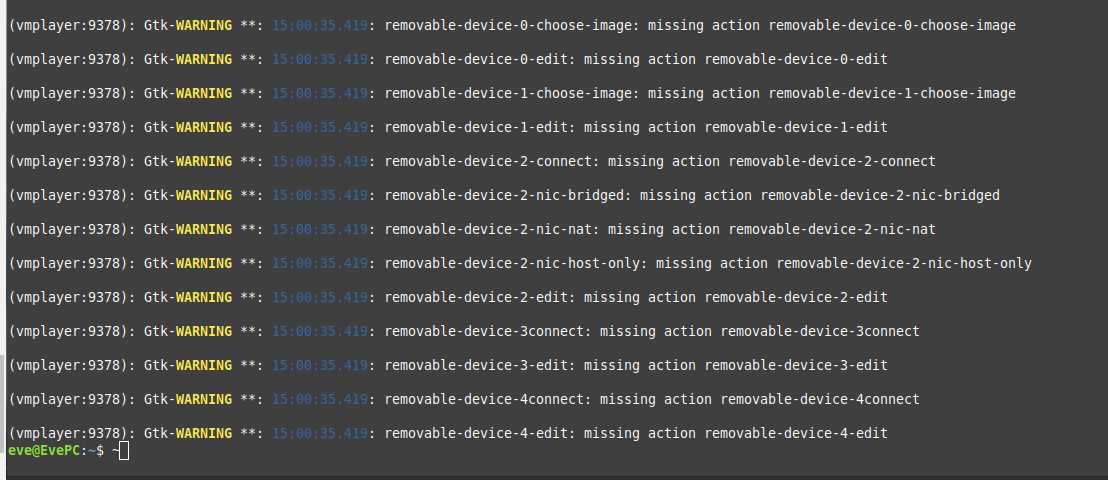
The initial warning is a remnant that doesn’t create any issues on the VMware itself. The rest are options that are not connected directly into the VM itself. It’s not an error that should concern you.
As it appears, it shoots no information out that could be helpful via terminal.
Can you grab a screenshot of the VMware options that lists the virtualization engine?
And one last thing. Do you have Virtualization active on your system’s BIOS?
We have exceeded my knowledge base here. Where do I look to find the options for the virtualization engine? I just looked through everything I could find in my system’s BIOS settings and saw nothing that looked like virtualization. Is there some setting there I didn’t recognize that would be it?
No worries, @PrettyGranny!
If you can take a few photos of your BIOS tabs, I can spot it for you, if the Virtualization is present.
The same goes for the VMware application. Their virtualization engine (hypervisor) is under the options. I’m currently away from my desktop where I have it installed, so - once I’m done with the calls I need at the moment - I’ll go and check the actual tab it’s in.
Wow, that’s a LOT of pics to share! Took me a while. And it appears that your system will only accept a certain number of pics before erring. I’ll have to post multiple replies to get it all in. I’m starting with the BIOS.
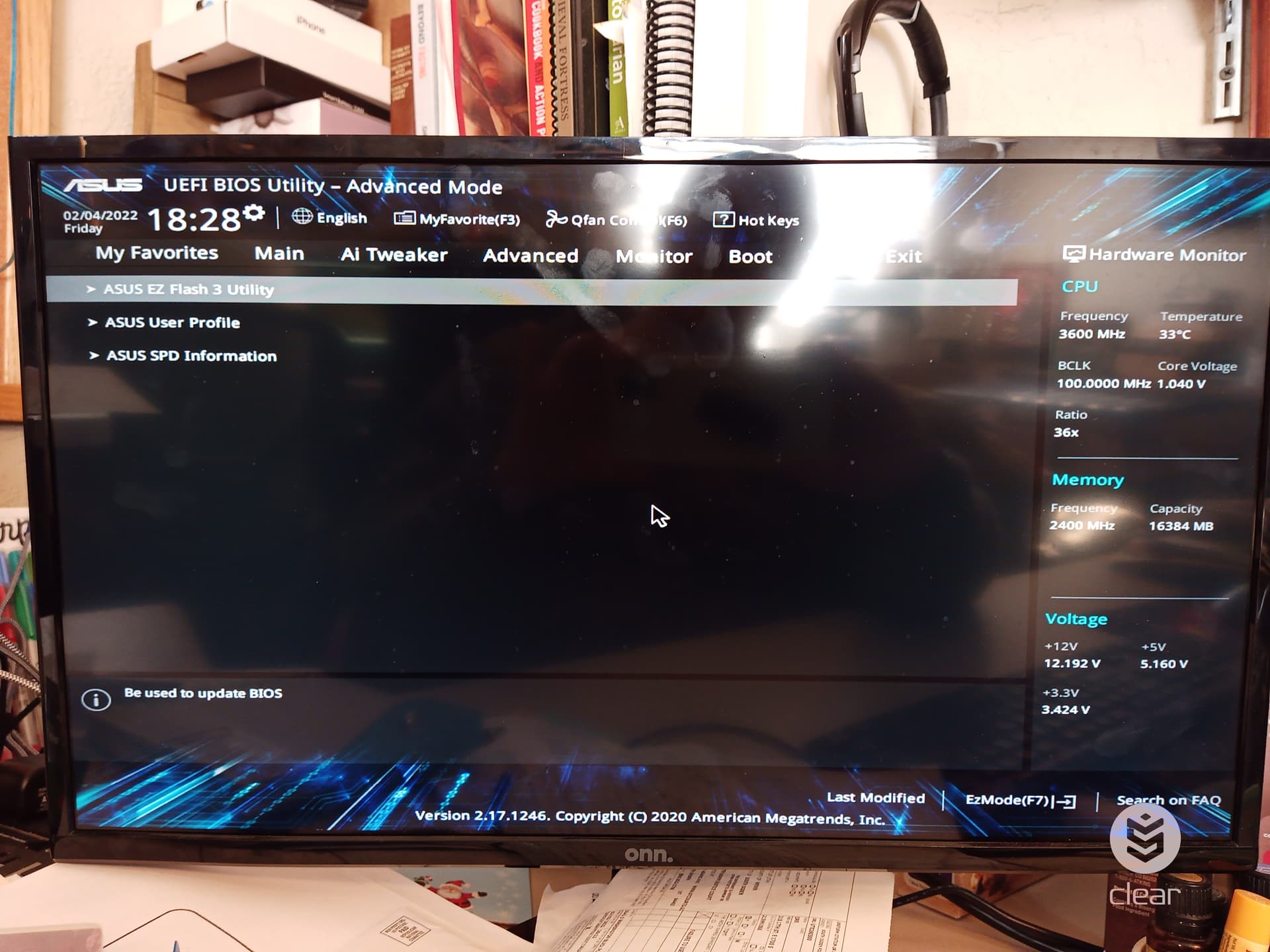
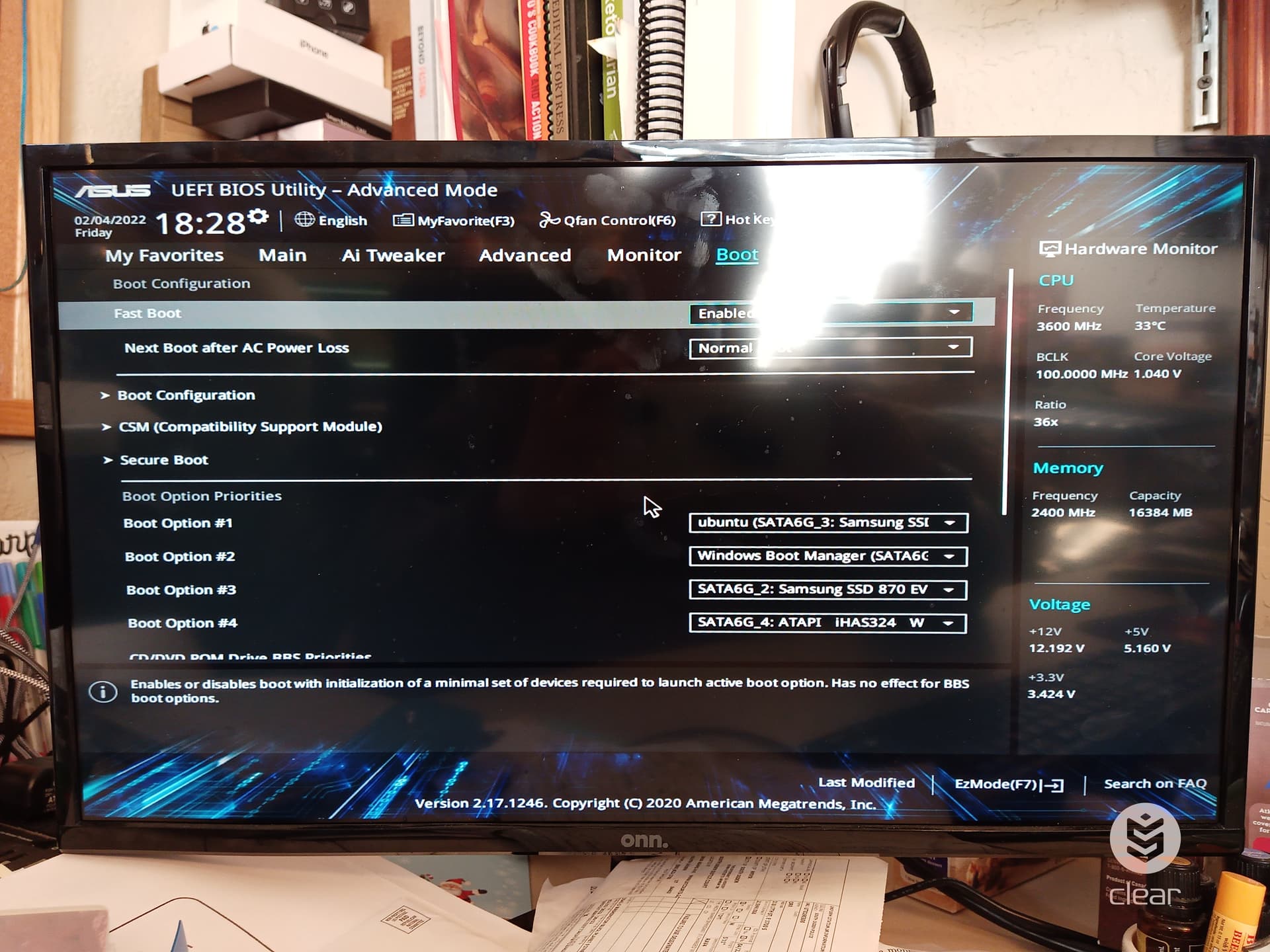
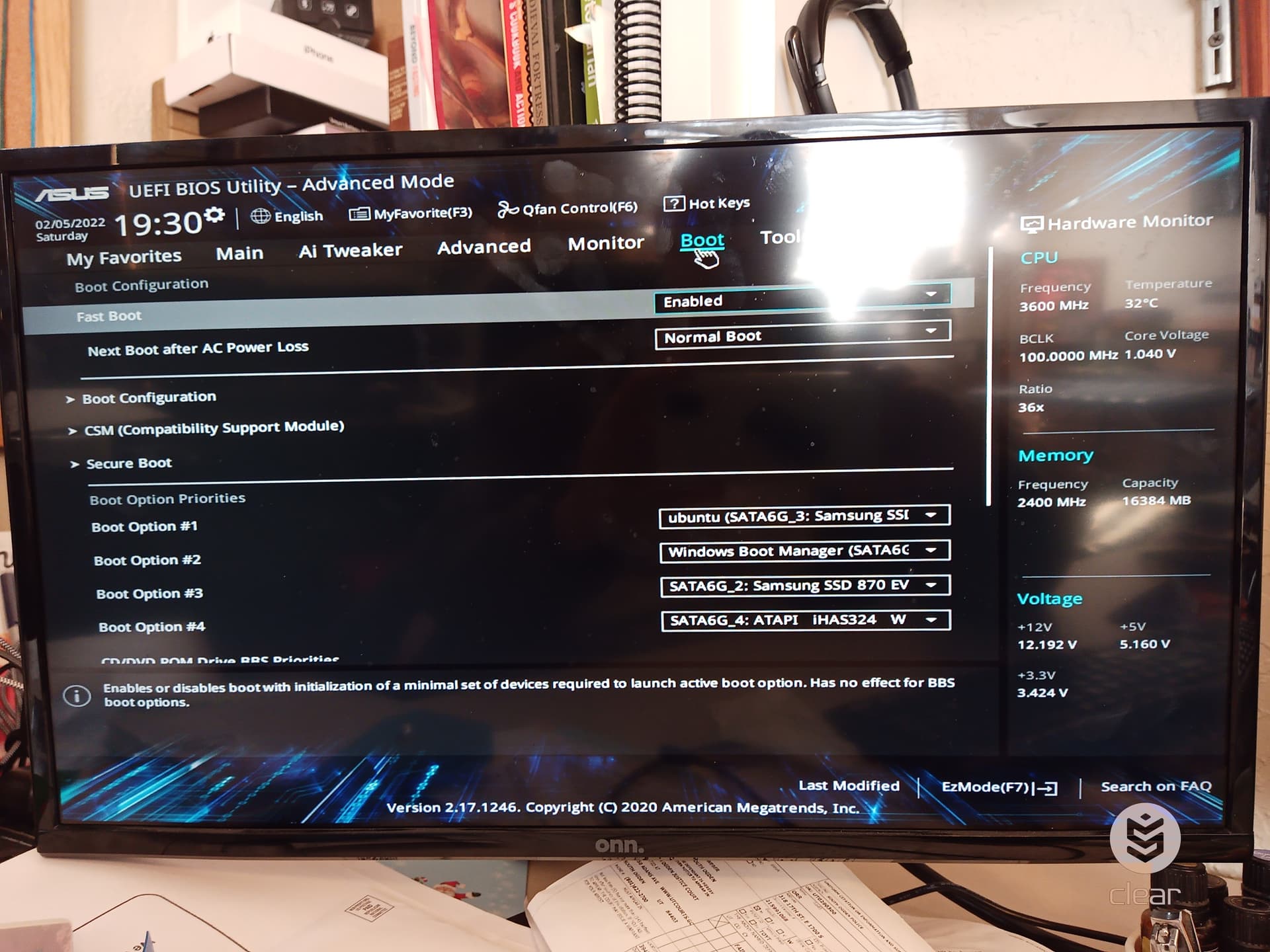
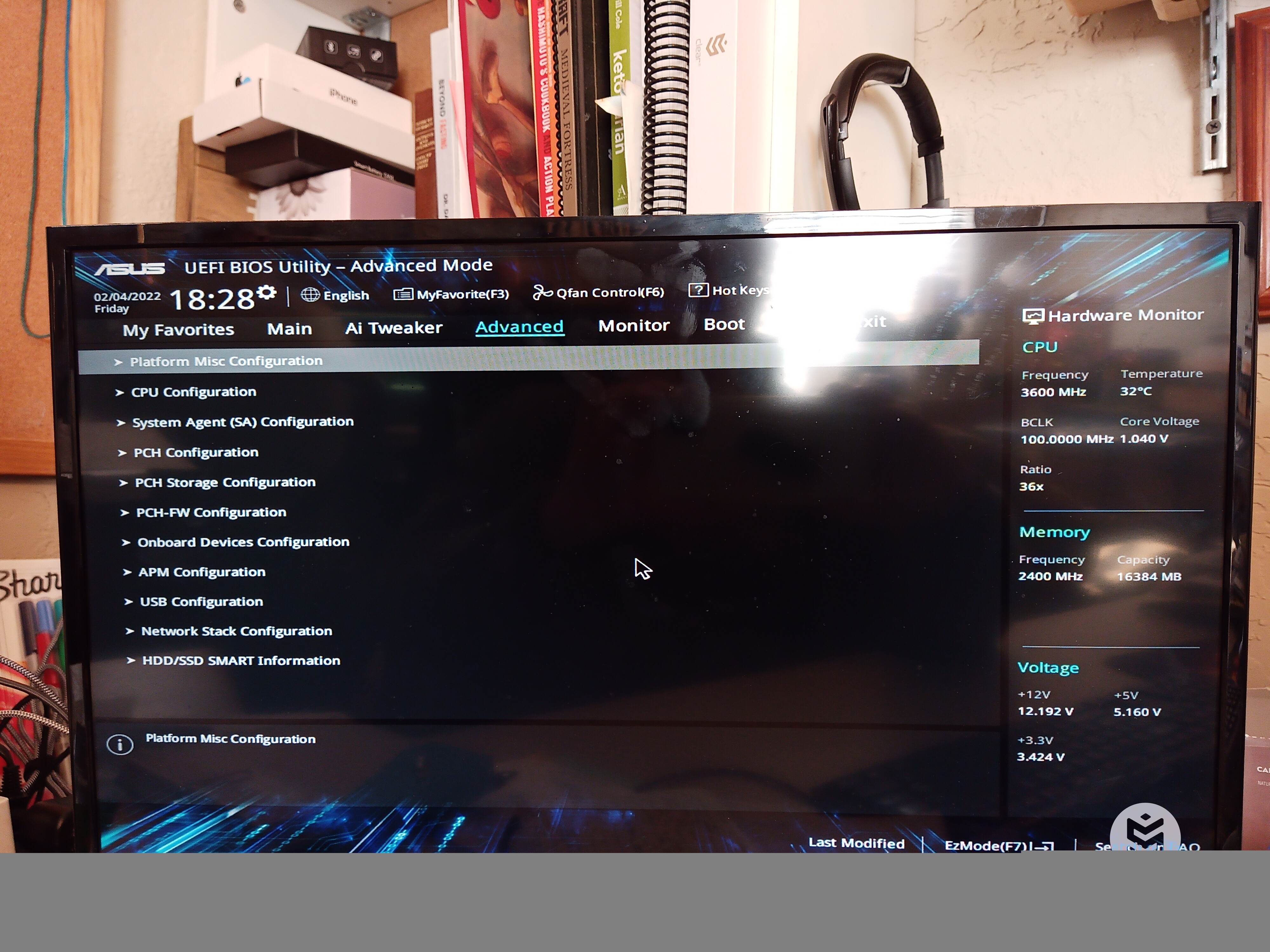
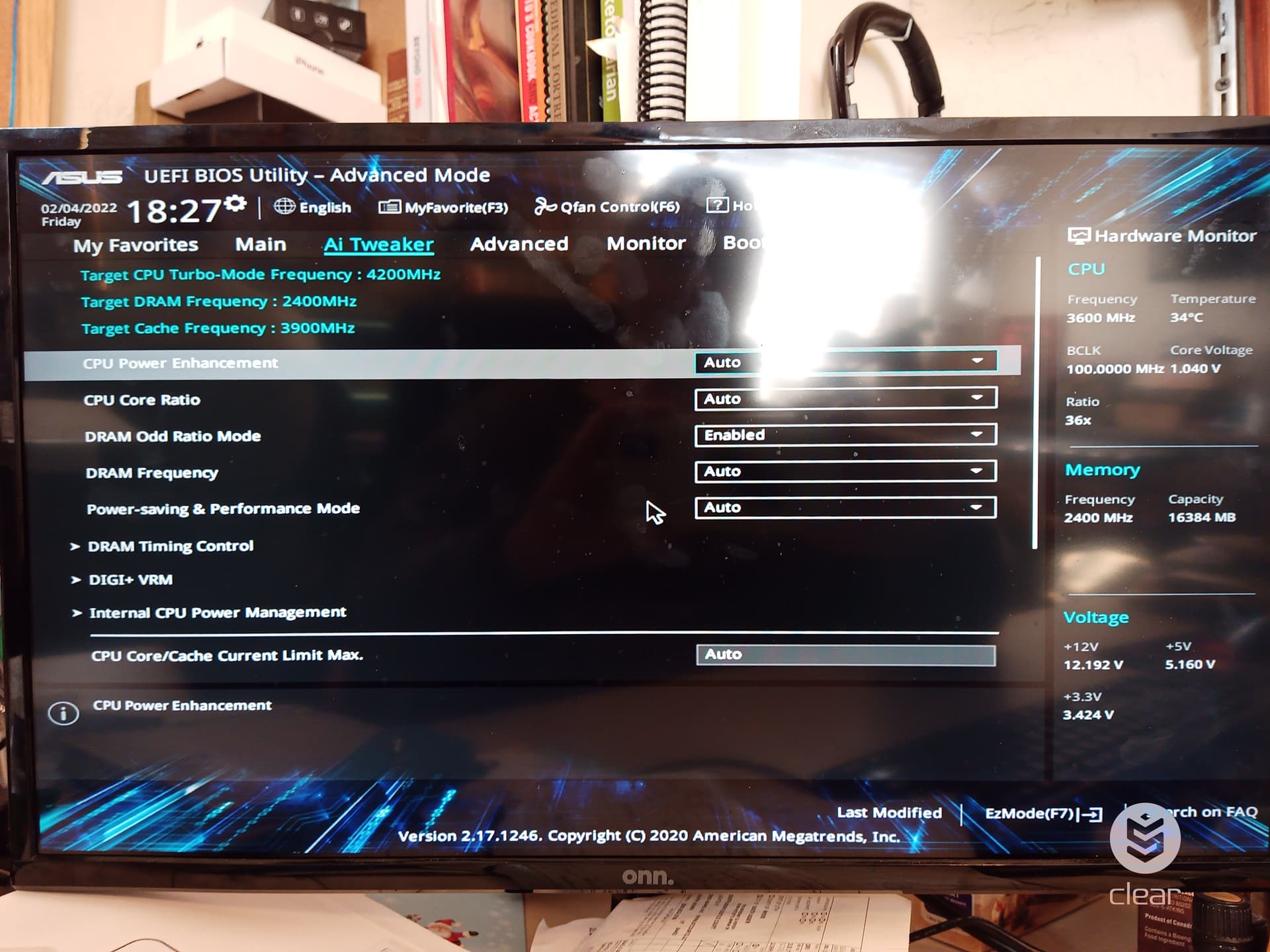
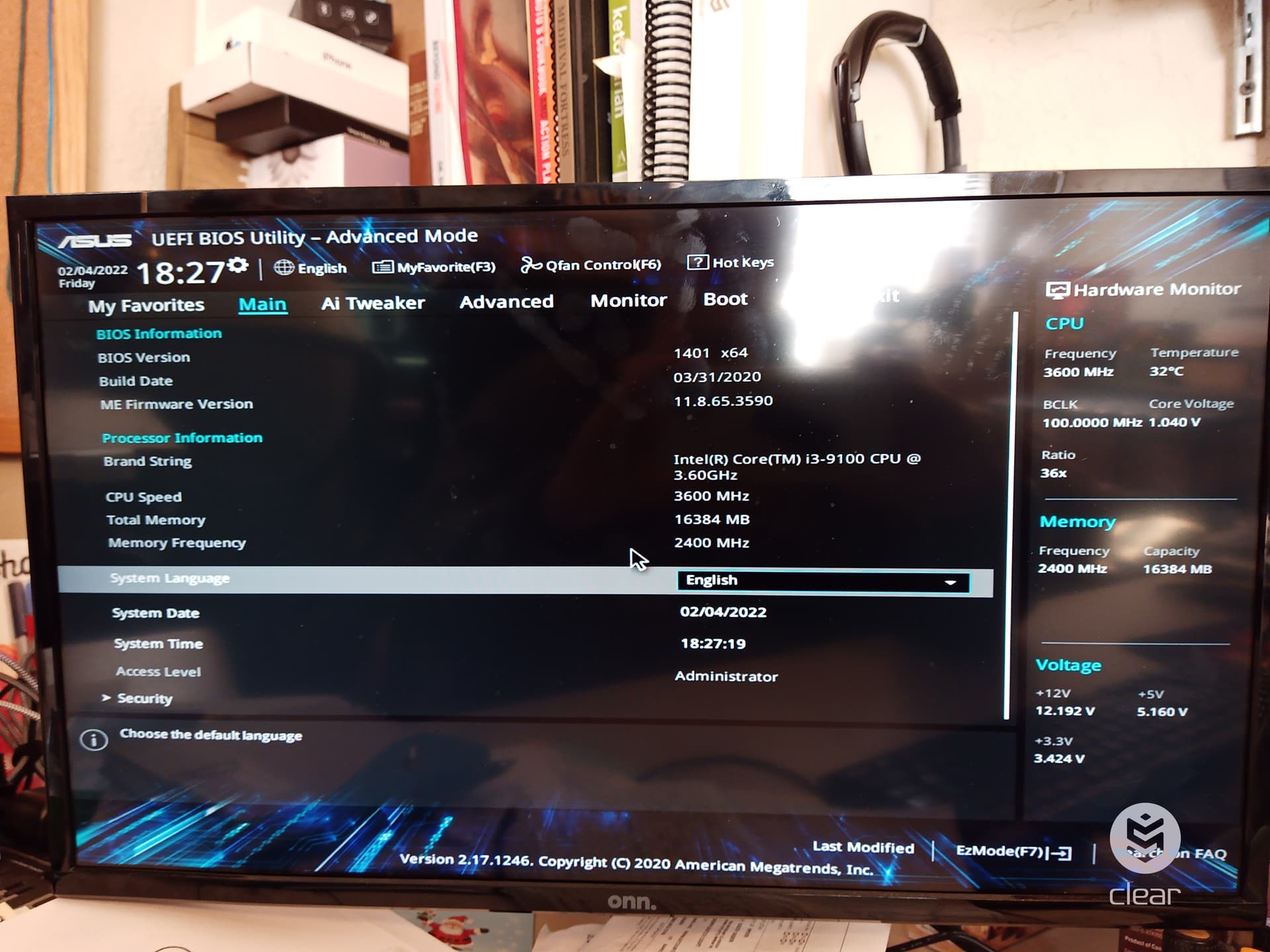
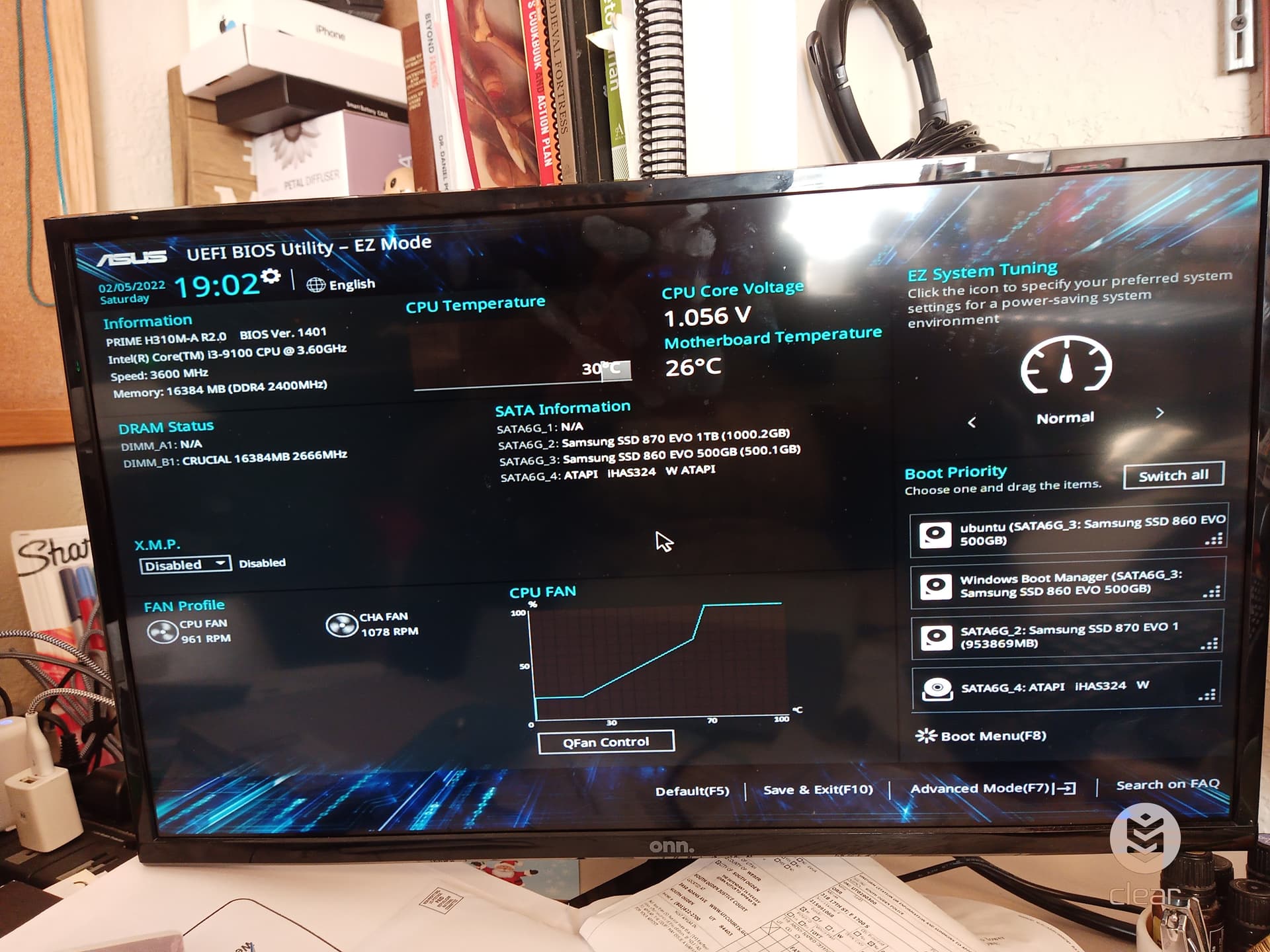
Guess I had a file problem for one that made them not all go into one reply.
Next, the VMWare stuff:
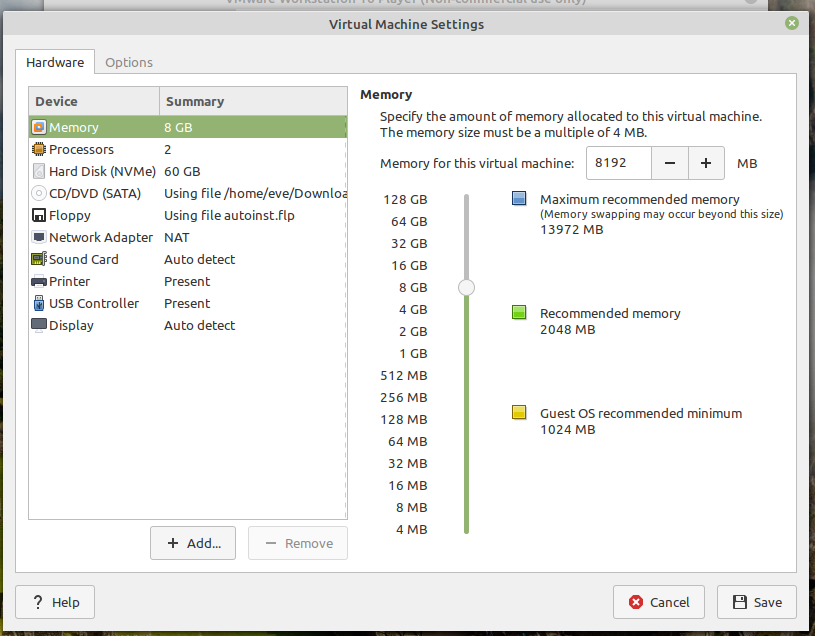
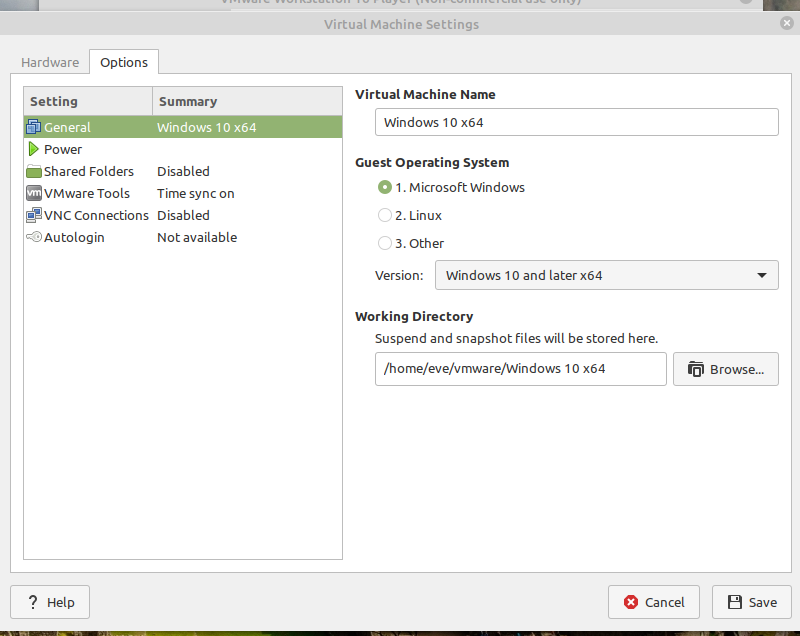
I hope all this is helpful. I appreciate the help!
Hey @PrettyGranny!
Thank you so much for your pictures!
On your (quite rich) BIOS, can you enter the CPU Configuration (under Advanced) and see if there’s anything in there regarding virtualization?
Also the hypervisor (virtualization engine) is in VMware’s Hardware area as I include in my screenshot below:
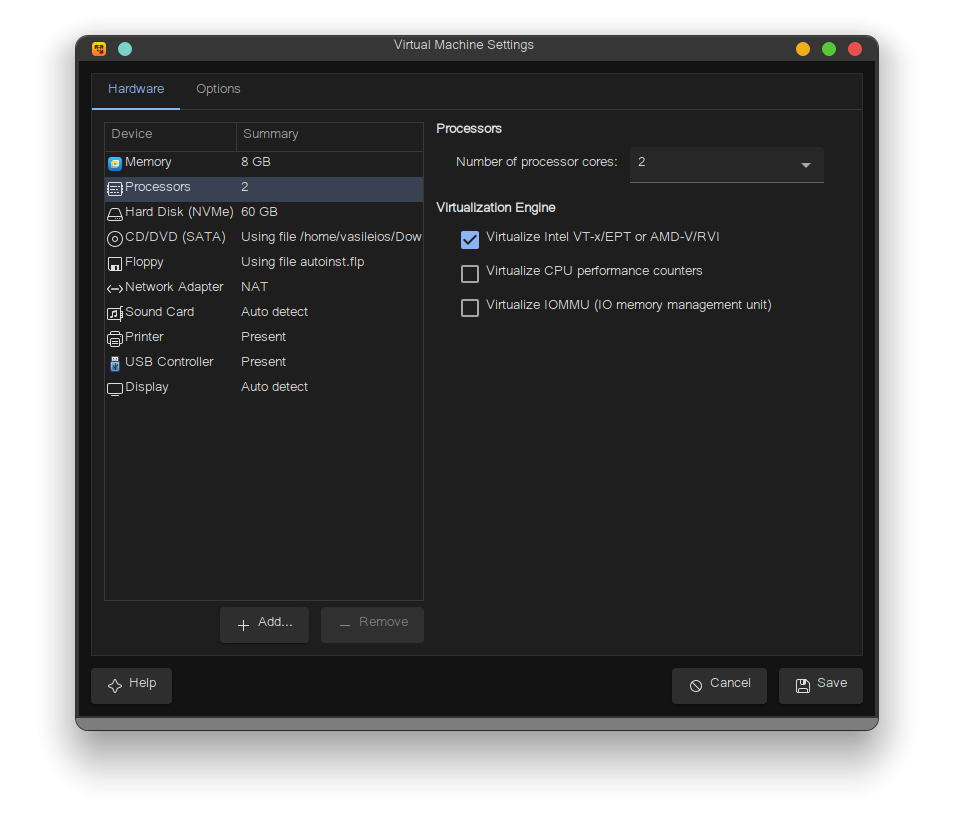
Perhaps alternating between the settings can help resolve the issue.
Oh, @vasileios! I’m so stoked! In the Bios way down at the bottom where you said I should look, I found and enabled virtualization. And thanks to your picture I checked the virtualization engine in VMWare. It’s working!!! As I write, Windows Setup is installing windows! Thanks so much!
1 Like