This screen shot is the message I get when I boot my computer:-
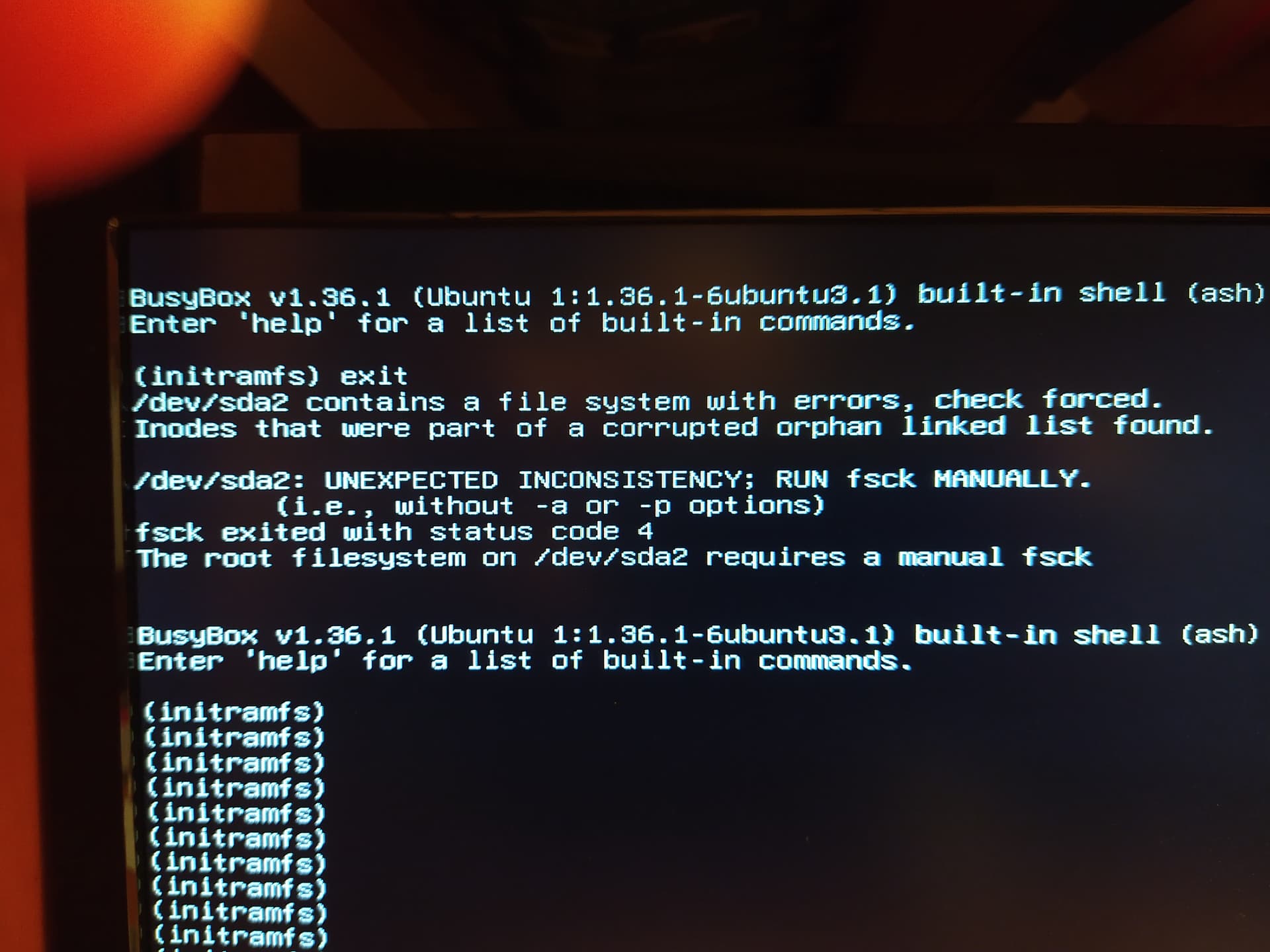
Running Mint 22.2
How do I run fsck on the partition /dev/sda2?
This screen shot is the message I get when I boot my computer:-
Running Mint 22.2
How do I run fsck on the partition /dev/sda2?
You have a couple of options. You can use the initramfs(that appears in your pic), safemode which likely you cannot access atm, or use a LiveCD.
A quick Brave search produced these results for your issue:
If your Linux Mint 22.2 system shows a message that the root filesystem on /dev/sda2 requires a manual fsck , you can resolve it by following these steps:
When the system boots and displays the initramfs prompt (often seen after a crash, power loss, or forced shutdown), you are in a minimal environment where you can run fsck directly on the root partition.
fsck -y /dev/sda2
-y flag automatically answers “yes” to all repair prompts.exit
If you can access the GRUB menu:
Shift (or Esc ) during boot to open the GRUB menu.tune2fs to schedule periodic checks (optional):sudo tune2fs -c 20 /dev/sda2
This sets the maximum mount count before fsck runs automatically. Adjust as needed.
sudo smartctl -A /dev/sda
If errors are reported, consider backing up data and replacing the drive.
Note : Running
fsckon a mounted filesystem is unsafe. Always perform it frominitramfs, a live system, or recovery mode.
Thank you MrDeplorableUSA.
After using fsck multiple times and finding the problem getting worse, I decided upgrade to mint 22.3 since my data files seemed ok.
After the upgrade it seemed like Timeshift and Update manager conflicted and froze the system which I then had to close by powering off. This led to systemd-journald errors that I have eventually discovered are related corrupted journal logs. I’ve cleaned these and all seems well.